Team Collaboration
The Inbox is a shared workspace, so the most important thing is that the team stays coordinated — no two people replying to the same client, and nothing dropped because everyone assumed someone else had it. Interline handles this with assignment, internal comments, and a clear closing flow.
Assigning conversations
Assigning a conversation makes one person responsible for it. Once assigned, it appears under that person's Assigned to me in My Inbox, signaling to the rest of the team that it's being handled. The assigned person's name is shown right on the conversation row in the list, so anyone scanning the queue can instantly see who owns what.
Use assignment to hand a conversation to the right specialist, to claim a conversation you're taking on yourself, or to triage a shared inbox by distributing its conversations to individual owners.
Internal comments
Internal comments are notes you leave on a conversation that the client never sees. They're for the team only.
Use them to add context before handing a conversation off (“Spoke to this client yesterday, they're waiting on a quote”), to ask a colleague a question, or to record a decision. Comments appear inline in the conversation history, visually distinct from the actual messages so there's no risk of confusing an internal note with a client reply.
@mentions
Within an internal comment you can @mention a teammate. Mentioning someone tags them on the conversation and notifies them, so you can pull the right person in directly — for example, looping in a manager on an escalation, or asking the colleague who owns an account to weigh in.
Tip
Internal comments + @mentions replace the side-channel of Slack messages and forwarded emails. Keeping the discussion on the conversation means the full context lives in one place, and the next person to pick it up sees the whole story.
Closing a conversation
When a conversation is fully handled, close it. Closing does two things:
- It takes the conversation out of the active queue, so it's not cluttering the Open and Unread views.
- It un-assigns the conversation from you, releasing your ownership.
This keeps your Assigned to me clean — once you've finished with something and closed it, it's off your plate. If the client replies again later, the conversation reopens and re-enters the queue.
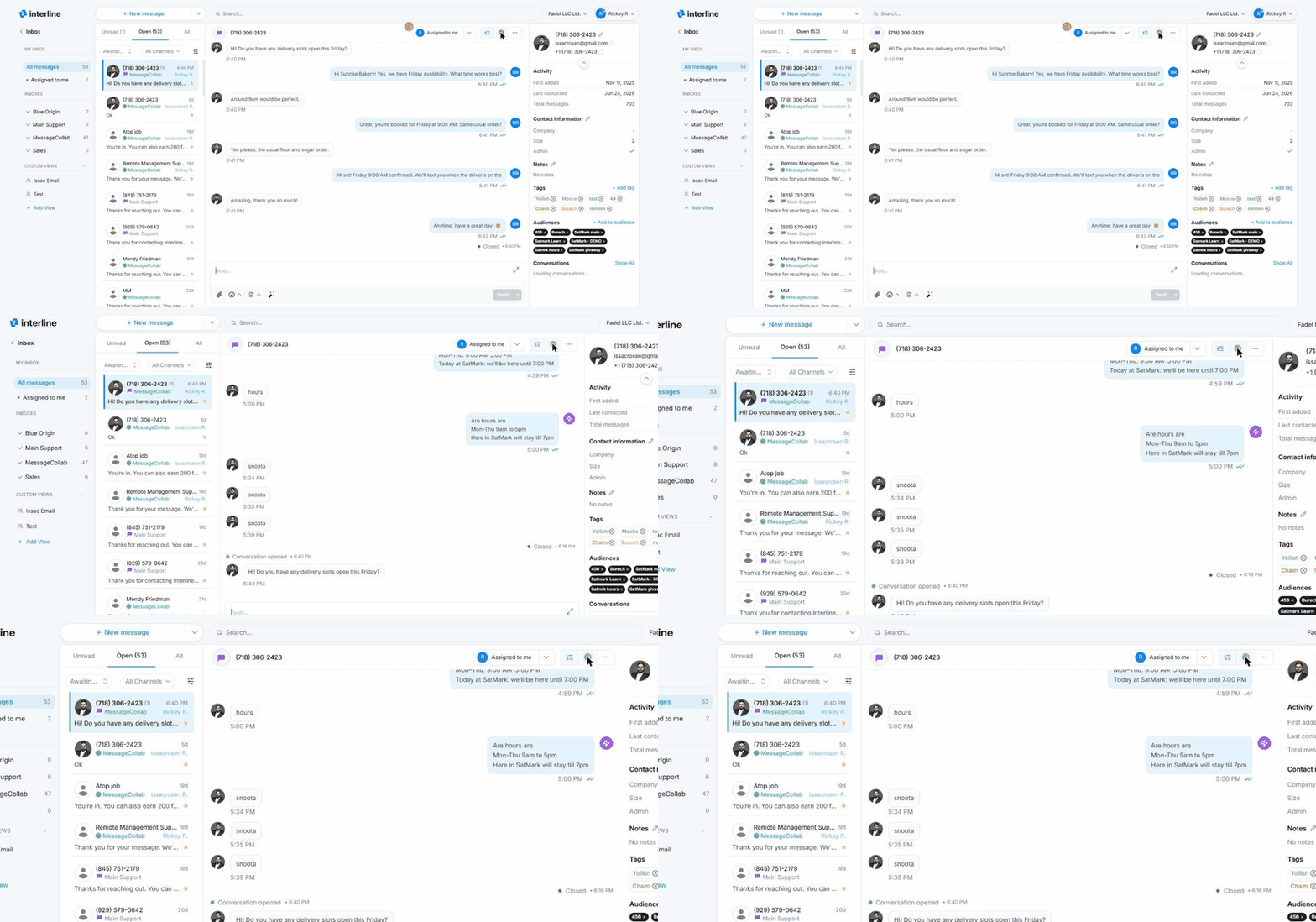
Use the green Close conversation check at the top of the thread. It immediately drops out of the Open queue (and the count ticks down):
Closing isn't deleting
A closed conversation isn't gone — it's archived and fully searchable, and it reopens automatically if the client messages again. Closing simply means “done for now.”
A typical team workflow
- Messages arrive in a shared inbox.
- An agent triages Unread, reading and setting priority and tags as needed.
- Each conversation is assigned to whoever should own it (or the agent handles it directly).
- The owner replies, using internal comments and @mentions to pull in help when needed.
- When the client's need is met, the owner closes the conversation — clearing it from the queue and releasing the assignment.
Next: Contacts.