Notifications
Notifications keep you on top of what needs your attention without constantly scanning the queue. You control your own alerts on the Notifications settings page.
Opening notification settings
Click your profile avatar in the top-right corner and choose Notifications (you'll land on Settings → Notifications). These settings are personal — each user configures their own; they don't affect teammates.
Allow browser notifications first
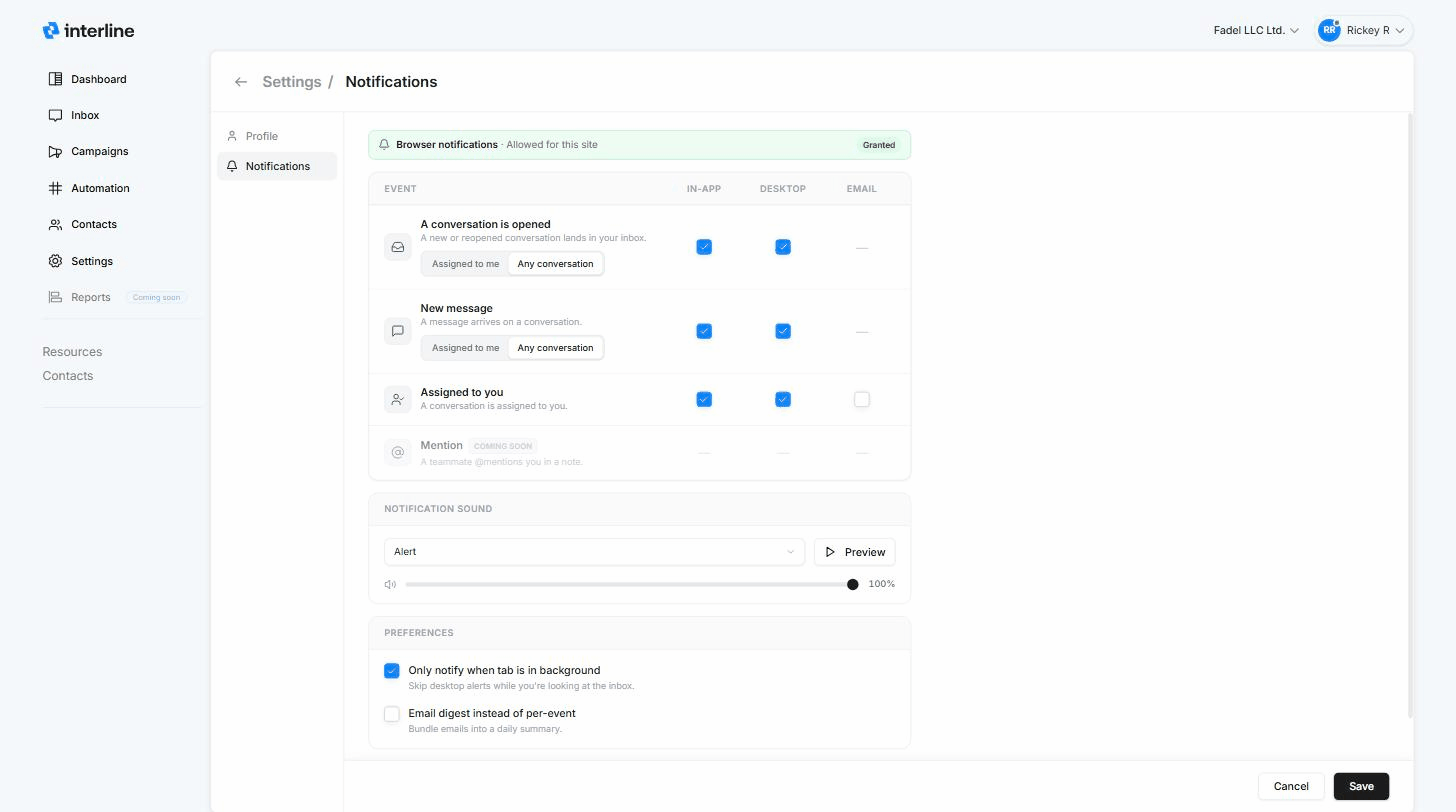
The banner at the top shows whether your browser has granted permission for desktop alerts. When it reads Granted (Allowed for this site), you're set.
Turn on browser notifications to get desktop alerts
Desktop alerts only work if your browser allows notifications for Interline. The first time you enable a Desktop toggle, your browser will ask for permission — click Allow. If you previously blocked it, the banner won't say Granted; open your browser's site settings (the padlock/site icon in the address bar → Notifications → Allow) and reload. Until permission is granted, In-app alerts still work but nothing will pop up on your desktop.
Choosing what notifies you — and how
The main table lets you turn each event on or off across three delivery methods:
- In-app — a badge/alert inside Interline while you're using it.
- Desktop — a browser push notification, so you're alerted even when Interline isn't the active tab (requires browser permission above).
- Email — an email notification.
The events are:
| Event | What it means | Scope |
|---|---|---|
| A conversation is opened | A new or reopened conversation lands in your inbox. | Assigned to me or Any conversation |
| New message | A message arrives on a conversation. | Assigned to me or Any conversation |
| Assigned to you | A conversation is assigned to you. | — |
| Mention (coming soon) | A teammate @mentions you in a note. | — |
For A conversation is opened and New message, use the Assigned to me / Any conversation toggle to decide how broadly you're alerted — only your own conversations, or everything coming into the inboxes you can see.
Delivery availability
Not every method is available for every event yet — where a method isn't offered, it shows a dash (—). Currently Email is available for Assigned to you, and the Mention event is coming soon.
Notification sound
Under Notification sound you can pick the sound that plays for in-app/desktop alerts (for example Alert), Preview it, and set the volume.
Preferences
Two extra options fine-tune the noise:
- Only notify when tab is in background — skip desktop alerts while you're actively looking at the inbox, so you're only pinged when you've stepped away.
- Email digest instead of per-event — bundle email notifications into a single daily summary rather than one email per event.
Save
Adjust the toggles, sound, and preferences, then click Save. Cancel discards your changes.
A sensible starting point
Keep in-app and desktop on for Assigned to you and New message → Assigned to me so you never miss your own conversations, turn on Only notify when tab is in background to cut noise while you're working, and reach for Any conversation only if you're actively triaging a shared inbox.
Agent vs. workspace settings
This page covers your notifications. Workspace-wide settings live in the Admin Guide.
That's the full Agent Guide. If you also handle setup, campaigns, or team management, head to the Admin Guide.