Users & Roles
Your team members are managed under Settings → User Management. From here you add people, set their role, control which inboxes they can see, and enable or disable accounts.
The user list
The overview shows your total users and how many inboxes exist. Below it, a searchable table lists every user with their name, role, status (Active or Disabled), email address, and last activity. You can search by name and filter by role.
Each user's row menu (⋯) lets you edit them, change their role or inbox access, and disable or re-enable the account. Disabling a user keeps their history but blocks them from signing in — use it instead of deleting when someone leaves.
Adding a user
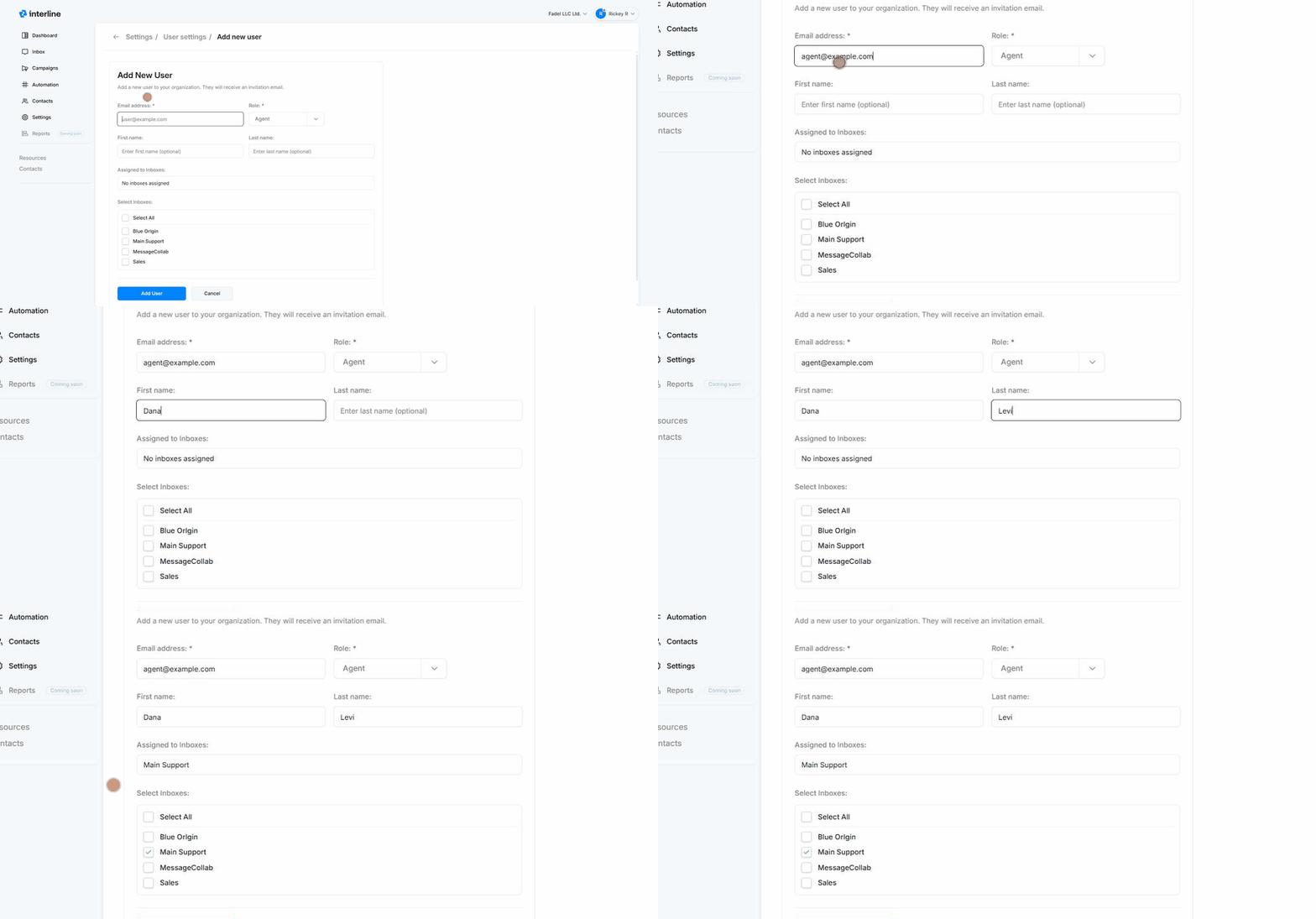
- Go to Settings → User Management and click Add user.
- Enter the user's email address (required) — this is where their invitation is sent.
- Choose a role (required). See roles below.
- Optionally add a first and last name (they can also set these themselves on first sign-in).
- Under Select Inboxes, tick the inboxes this user should have access to (or Select All). A user only sees conversations in the inboxes assigned to them — plus anything assigned directly to them (see Mailboxes & Inboxes).
- Click Add User. They'll receive an invitation email to set their password and join.
Inbox access matters
Assigning the right inboxes is how you scope what each agent sees. An agent on only the Sales inbox won't see Support conversations — but if a Support conversation is assigned to them, it still shows up under their Assigned to me.
Roles
Interline uses role-based access. The roles are:
- Admin — full access, including settings, channels, billing, users, and all inboxes.
- Manager — manages day-to-day operations and team workflows (broader than an agent, without full admin control).
- Agent — front-line conversation handling in the inboxes they're assigned to.
Set a user's role when you add them, and change it later from their row menu. Pick the least-privileged role that lets someone do their job — most conversation handlers are Agents.
Role permissions
Fine-grained permission configuration per role is part of the platform's RBAC model and will be expanded in these docs. For now, choose Admin / Manager / Agent based on the access summary above.