Channels
Channels are the ways Interline sends and receives messages: SMS, WhatsApp, and Email. You manage them under Settings → Channels.
The Channels page
The Channels page shows a card for each channel type with a quick health summary:
- SMS — how many active numbers you have.
- WhatsApp — how many active numbers you have.
- Email — how many active sending addresses you have.
Expand a card (the chevron) to see its details: a Channel status toggle (turn the channel on/off), the number of active numbers/addresses, and total messages today. Each card also links to that channel's full settings (e.g. WhatsApp Settings, Email Settings) where its numbers/addresses are configured.
Adding a number or address
Connecting a new SMS number, WhatsApp number, or email address is done from the relevant channel's settings. Because phone numbers and WhatsApp Business accounts require provisioning and verification with the underlying providers, SMS and WhatsApp channels are typically set up with the Interline team. Email is self-serve — see Connecting an Email Channel.
- SMS — a phone number capable of sending/receiving texts (and MMS for images).
- WhatsApp — a WhatsApp Business number; outbound campaigns use approved templates (see Broadcast).
- Email — connected self-serve by signing in with the Google or Microsoft account you want to use. See Connecting an Email Channel for the step-by-step guide.
Channel status toggle
Use the Channel status toggle to pause a channel without removing it — useful during maintenance or if you temporarily stop using a number.
Default signature
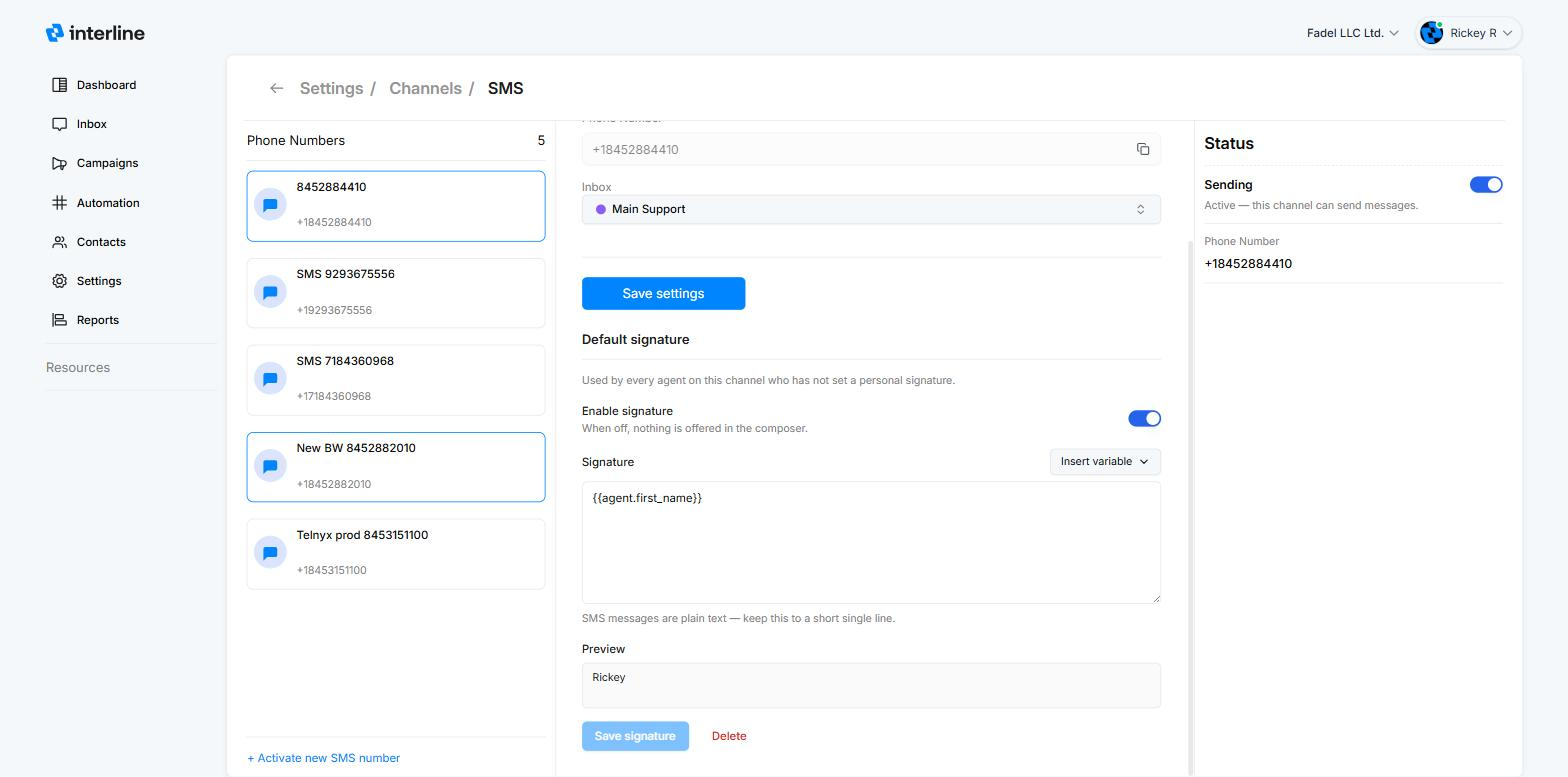
Every channel can carry a default signature — a sign-off appended to outgoing messages on that channel. You'll find it in the channel's settings: Settings → Channels, open the channel type's settings (e.g. SMS Settings), select the number or address, and scroll to Default signature.
The default is used by every agent on that channel who hasn't set a personal signature of their own — an agent's personal signature always takes priority. Agent variables resolve to whoever is sending, so a single default like Thanks, {{agent.first_name}} · {{org.name}} still personalizes itself per agent.
A few things to know:
- Signatures are plain text — HTML isn't supported — and they take the same variables as personal signatures; see the variables list.
- The Enable signature toggle controls whether the default is offered at all: when it's off, agents without a personal signature get nothing in the composer.
- The Preview shows the resolved result as you type; Save signature applies it, and Delete removes it from the channel.
In the composer, agents see an Insert signature checkbox with a preview of what will be appended, and can switch it off for a single message — see Signatures in the Agent Guide.
How channels relate to inboxes
Incoming messages on a channel are routed into inboxes so your team can work them. Which inbox a message lands in is governed by your Auto-assign rules. When sending a campaign or replying in the Inbox, you choose which channel/number it goes out from.
Note
Exact setup screens for SMS and WhatsApp vary by provider and are being expanded in these docs. If you need a new number connected, reach out to your Interline contact. Email accounts can be connected yourself — see Connecting an Email Channel.