Canned Replies
Canned replies are pre-written messages your agents can drop into a conversation instead of typing the same thing repeatedly. You manage the shared library under Settings → Messages.
Agents use these from the reply editor in the Inbox; this page covers creating and maintaining them.
The canned replies list
Settings → Messages shows every canned reply with its name, a text snippet (preview of the content), and its status (Active). You can search by name and filter by channel. Each row's menu (⋯) lets you edit or remove a reply.
Creating a canned reply
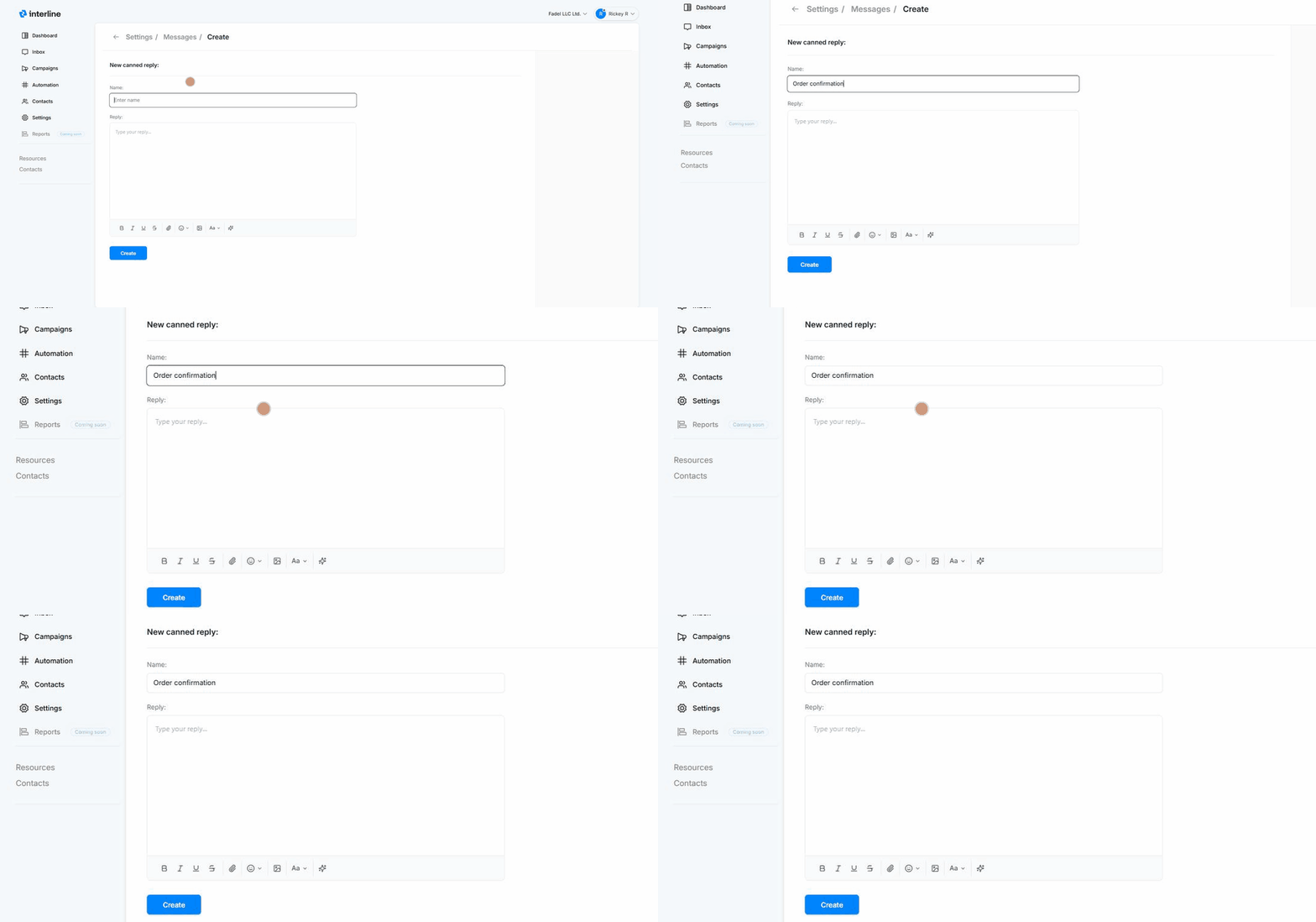
- Go to Settings → Messages and click New canned reply.
- Enter a Name — this is the label agents see in the picker, so make it short and recognizable (e.g. Order confirmation, Hours, Payment pending).
- Write the Reply in the rich-text editor. You can format text (bold, italic, underline, strikethrough), add emoji and images, and attach files, so a canned reply can be more than plain text.
- Click Create.
Personalize with variables
Include {variables} like {first_name} in the reply, and they fill in with the contact's details when an agent inserts it — so a canned reply still reads personally.
What makes a good canned reply
Build canned replies for your most common, repeatable answers — order status, business hours, payment instructions, "we've received your message." Keep the names clear so agents can find the right one fast, and review the library periodically to retire ones you no longer use.
How agents use them
In a conversation, an agent opens the canned-reply picker from the reply toolbar, searches by name, and inserts the reply — then edits before sending if needed. See Reading & Replying.