Custom Fields & Tags
Beyond the built-in contact details (name, phone, email), you can add your own custom fields to store information specific to your business — and maintain the shared list of tags. Both live under Settings → Contacts, which has a Custom fields tab and a Tags tab.
Custom fields
Custom fields add extra, structured data to every contact (for example Company Size, Account type, VIP status). The Custom fields tab lists each field's name, key, type, and created date.
Creating a custom field
- Go to Settings → Contacts → Custom fields and click New custom field.
- Enter a Name — the human-readable label (e.g. Company Size).
- Enter a Key — the identifier used in the API and exports (e.g.
company_size). Keep it lowercase with underscores and don't change it later, since integrations rely on it. - Choose a Type — for example Text, Number, or Checkbox — so the field captures the right kind of value.
- Click Create field.
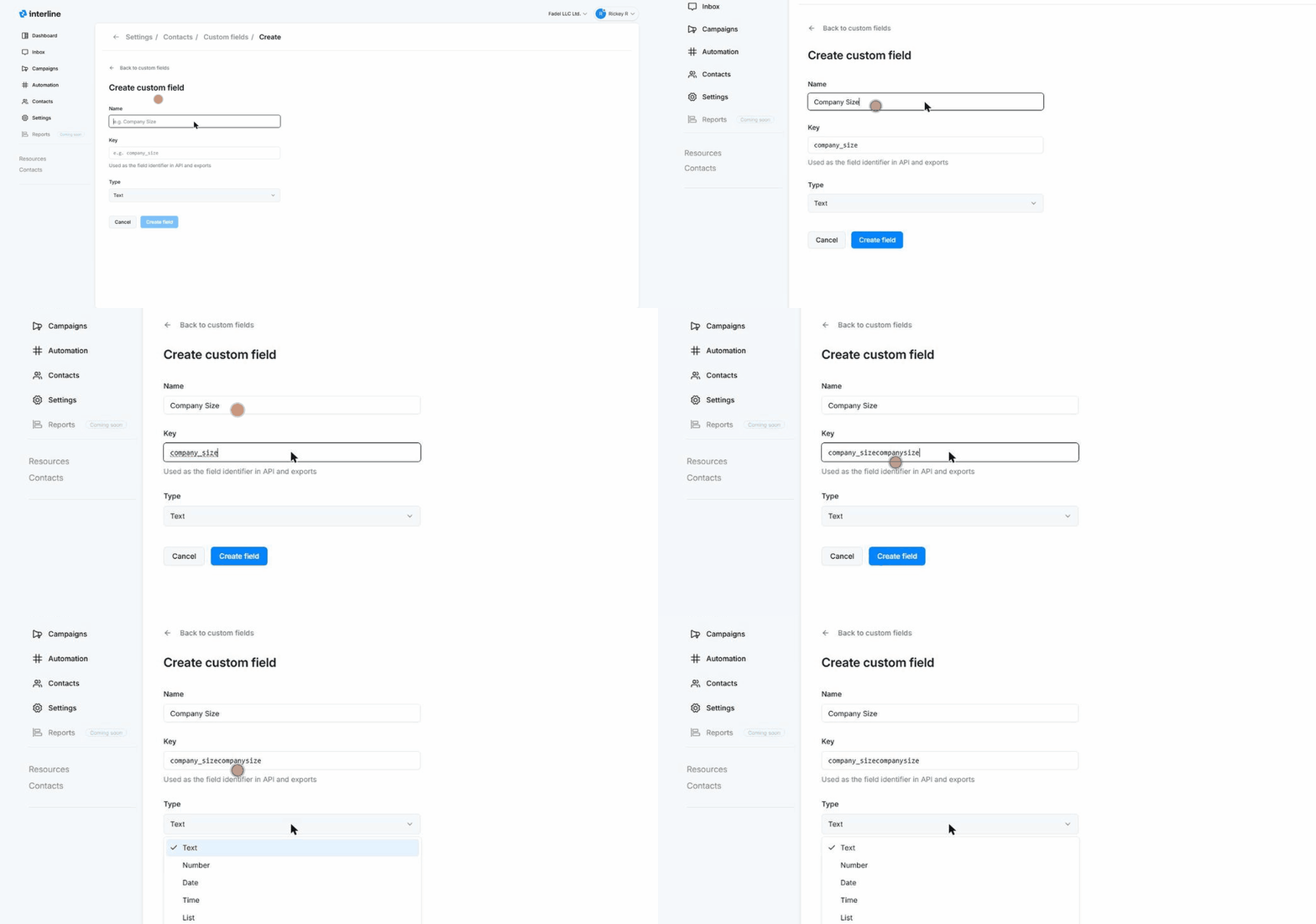
Once created, the field appears on contact records (in the Contact information section of the contact panel) where it can be filled in, and it's available for exports and the API.
Tags
Tags are simple labels you attach to contacts (e.g. VIP, Wholesale) to categorize and segment them. The Tags tab manages the shared tag list for your workspace — create, rename, or remove tags here so everyone uses a consistent set.
Agents apply tags to a contact from the contact panel, and tags can also be applied automatically by keyword campaigns and imports. Well-maintained tags power targeted audiences and Broadcast campaigns.
Custom fields vs. tags
Use a custom field when you need a value (a number, a date, a piece of text). Use a tag when you just need a yes/no label you can group by. Both help you segment contacts for campaigns.