Inboxes
Inboxes are the shared queues your team works from. Each is a named space (often a team or topic) that members can access to handle conversations. You manage them under Settings → Inboxes.
The Settings → Inboxes screen has two tabs: Inboxes and Custom Views. This page covers Inboxes; custom views have their own page.
The inboxes list
The Inboxes tab lists every inbox with its team name, description, color, and member count. Each row's menu (⋯) lets you edit or remove an inbox. The color is a visual marker that appears next to conversations so agents can tell at a glance which inbox a conversation belongs to.
Creating an inbox
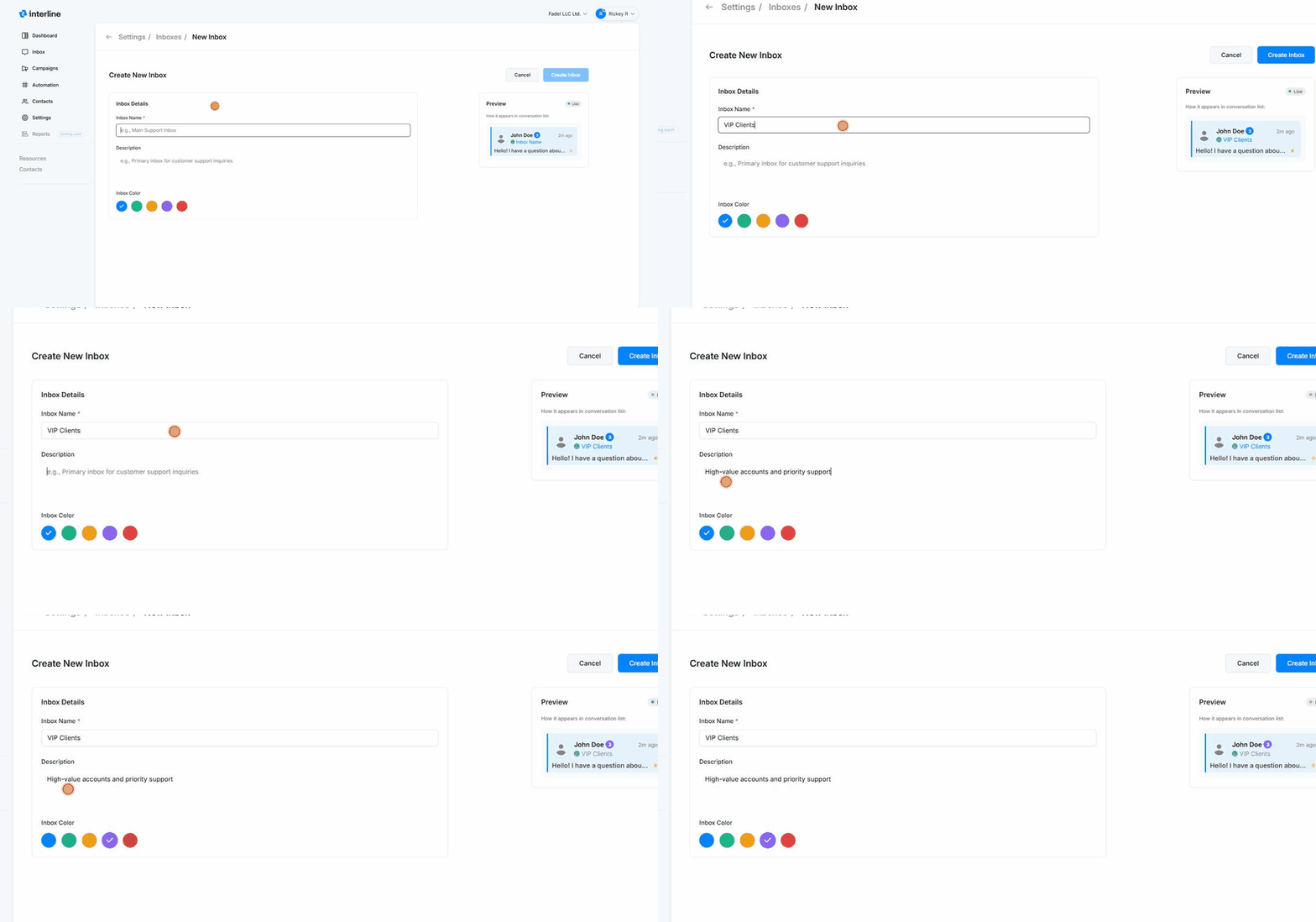
- Go to Settings → Inboxes and click New inbox.
- Enter an Inbox Name (required) — e.g. Main Support, Sales, Billing.
- Optionally add a Description.
- Pick an Inbox Color. A live Preview shows how the inbox will look in the conversation list.
- Click Create Inbox.
Adding members
A user's access to an inbox is controlled from User Management — when you add or edit a user, you tick the inboxes they should belong to. The inbox list shows how many members each inbox has.
An agent only sees conversations in the inboxes they're a member of — plus any conversation assigned directly to them. See Mailboxes & Inboxes for the agent's view.
Structure inboxes around how work is divided
Common setups are by team (Support, Sales, Billing), by brand/number, or by channel focus. Then use Auto-assign rules to route incoming messages to the right inbox automatically.