Custom Views
A custom view is a saved, named, filtered list of conversations — for example "High priority", "WhatsApp only", or "My email". Views appear in the Inbox left rail under Custom Views, giving agents one-click access to the slice of conversations they care about.
Views can be created and managed in two places: from the Inbox (the + Add View button in the left rail) and under Settings → Inboxes → Custom Views.
The custom views list
Under Settings → Inboxes → Custom Views, each view shows its name, description, visibility, and who created it. The row menu (⋯) lets you edit or delete a view.
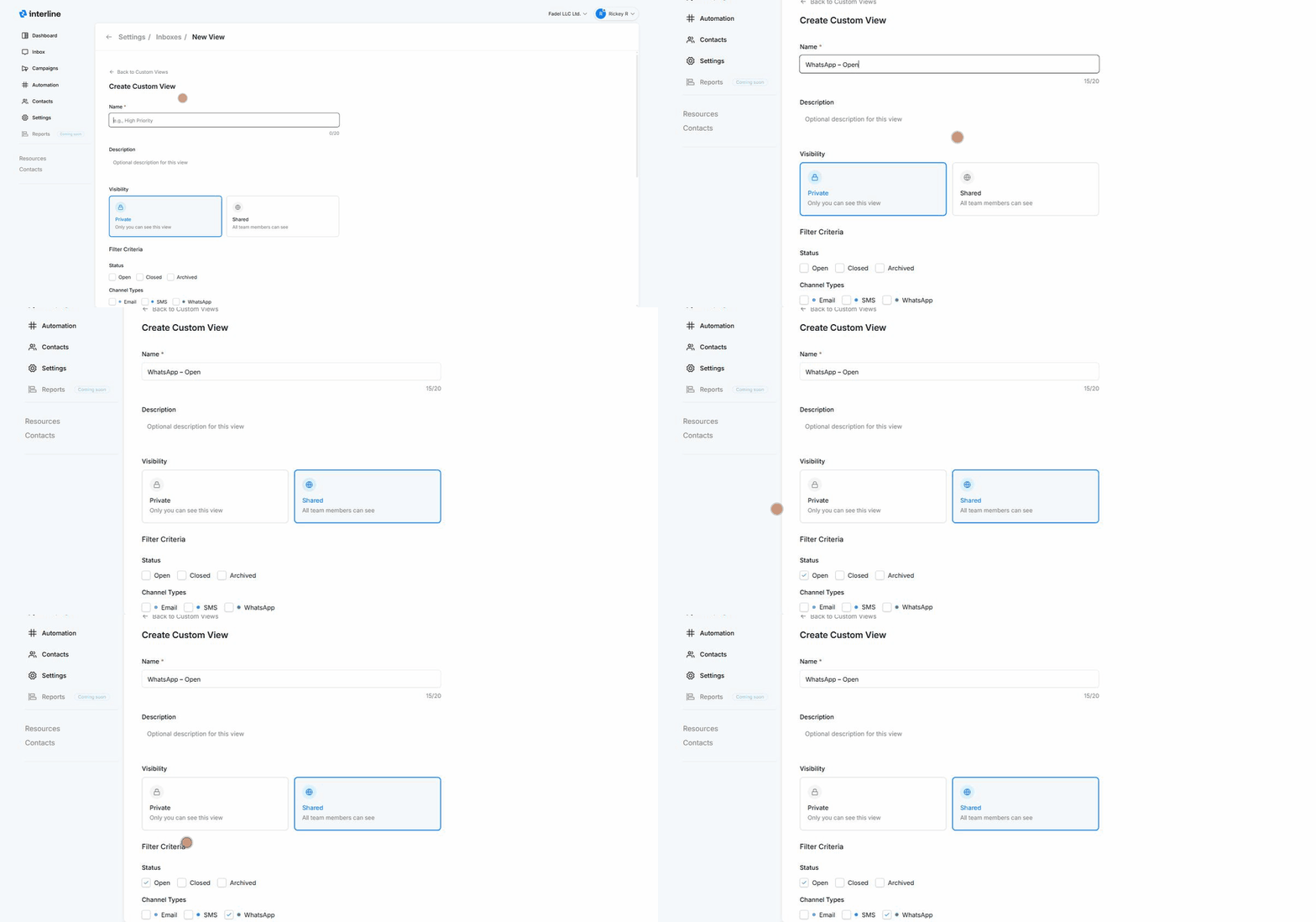
Creating a custom view
- Click New view (in settings) or + Add View (in the Inbox rail).
- Enter a Name (up to 20 characters) and an optional description.
- Choose Visibility:
- Private — only you can see this view.
- Shared — all team members can see and use it.
- Set the Filter Criteria that define which conversations appear:
- Status — Open, Closed, and/or Archived.
- Channel types — Email, SMS, and/or WhatsApp.
- Specific channels — narrow to particular numbers or addresses (e.g. one WhatsApp number).
- …and other criteria for honing in on exactly the conversations you want.
- Save. The view appears under Custom Views in the Inbox.
Good views to create
Set up shared views for the slices your whole team uses (e.g. Awaiting response, VIP, WhatsApp), and private views for your own workflow. Because views are just saved filters, they always stay current — new matching conversations show up automatically.
See Mailboxes & Inboxes for how custom views fit alongside My Inbox and the shared inboxes in an agent's day.