Signatures
A signature is a short sign-off that Interline adds to your outgoing messages — your name, your company, maybe a phone number or website. Set it once and it's appended automatically when you send, so every reply goes out consistent and professional.
Signatures come in two levels:
- Your personal signature — set by you, for you, under your profile. This page covers it.
- A channel's default signature — set by an admin on a channel, and used by every agent on that channel who hasn't set a personal signature of their own. See Default signature in the Admin Guide.
If you have a personal signature on a channel, it replaces that channel's default.
Setting your personal signature
Click your name (top right) → View profile → Signatures.
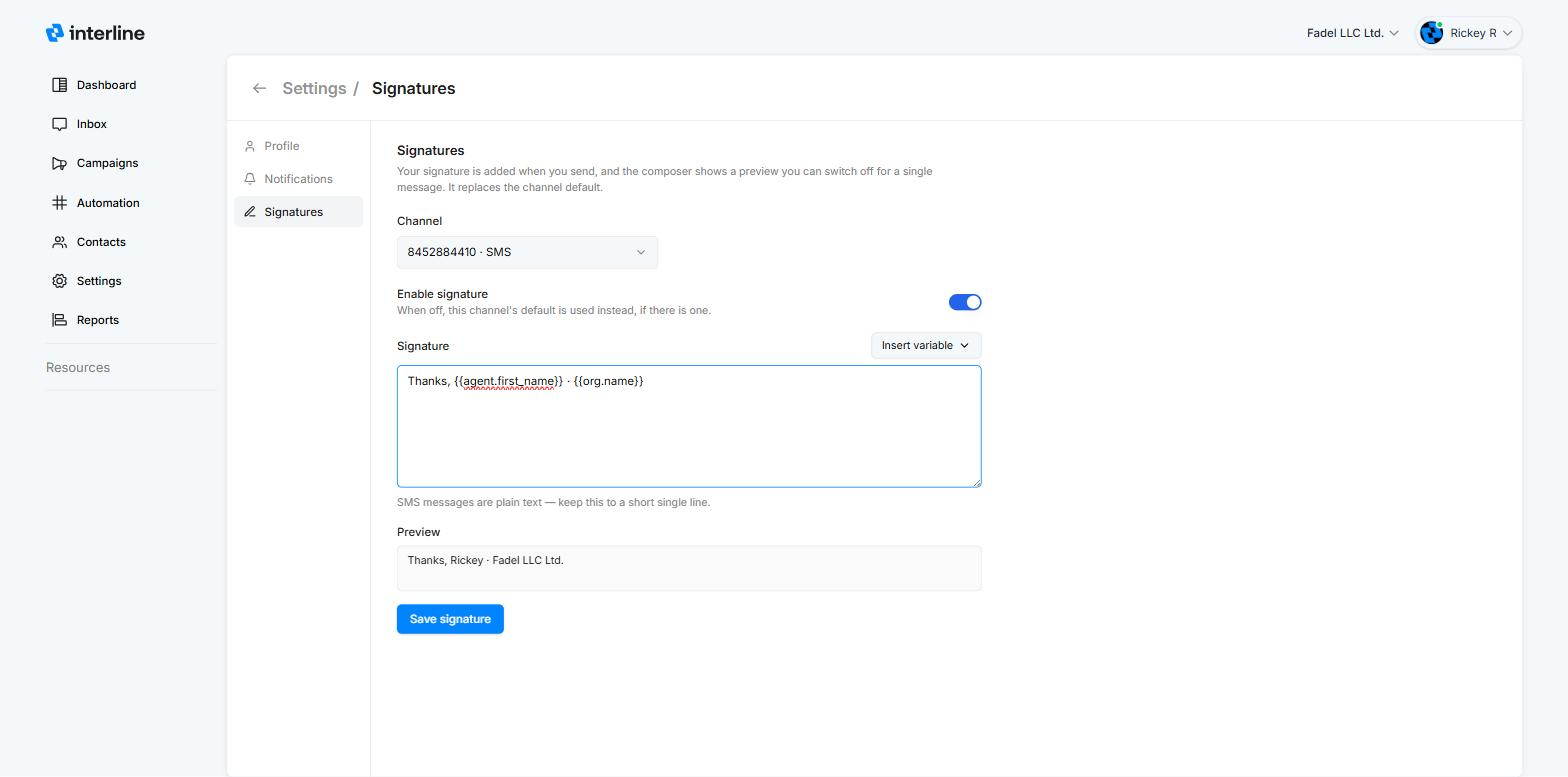
- Pick the Channel. Signatures are per channel, so you can sign emails one way and texts another — a fuller signature on email, a short one on SMS.
- Turn on Enable signature.
- Type your signature. Use the Insert variable menu to drop in dynamic values like your name or the company website (see Variables below).
- The Preview below the editor shows exactly how it will read, with the variables filled in.
- Click Save signature, then repeat for any other channels you send from.
Turning it off
If you switch Enable signature off for a channel, the channel's default signature is used instead — if the admin has set one.
Variables
Signatures are plain text — HTML isn't supported — but they can include variables: placeholders that fill in automatically when the message is sent. Insert them from the Insert variable menu, or type them directly.
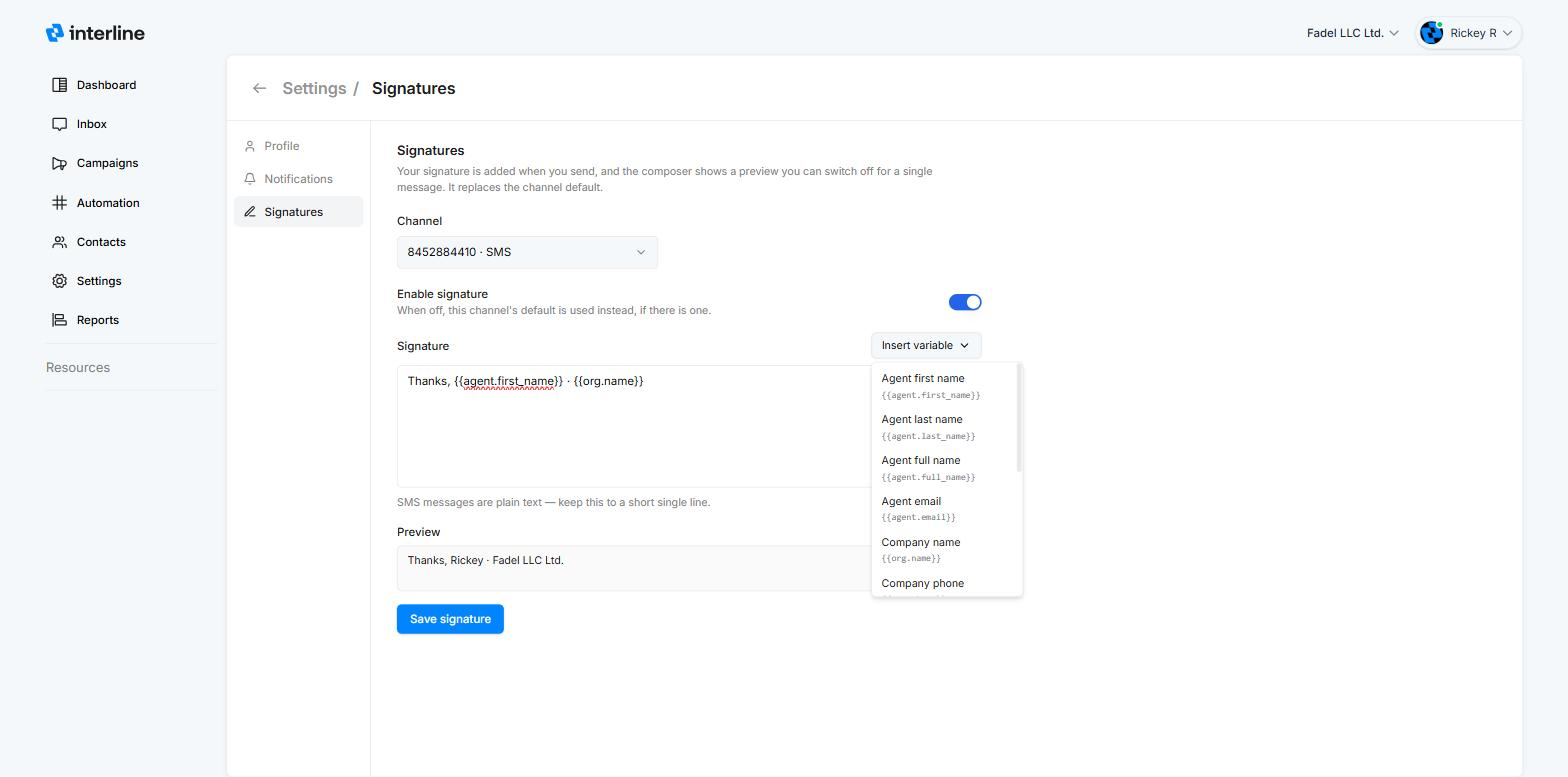
| Variable | Fills in with |
|---|---|
{{agent.first_name}} |
Your first name |
{{agent.last_name}} |
Your last name |
{{agent.full_name}} |
Your full name |
{{agent.email}} |
Your email address |
{{org.name}} |
Company name |
{{org.phone}} |
Company phone |
{{org.email}} |
Company email |
{{org.website}} |
Company website |
{{org.address}} |
Company address |
{{org.city}} |
Company city |
{{org.state}} |
Company state or region |
{{org.country}} |
Company country |
Company values come from your Company Settings, so a signature like Thanks, {{agent.first_name}} · {{org.name}} stays correct even if details change later.
In the composer
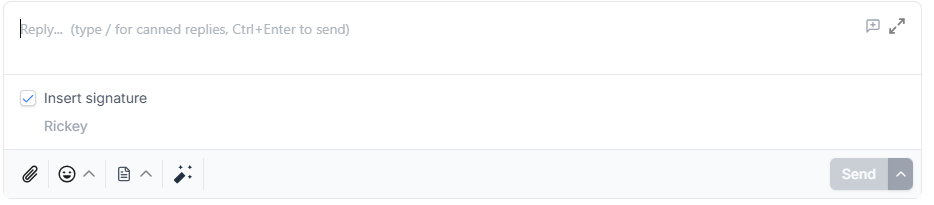
When a signature applies to the conversation's channel, the reply editor shows an Insert signature checkbox with a preview of the signature underneath. It's checked by default — the signature is appended to your message when you hit send.
Sending something quick where a sign-off would feel out of place? Uncheck it for that one message. Your saved signature isn't affected.
Keep SMS signatures short
SMS messages are plain text and every character counts, so keep your SMS signature to a short single line — Thanks, {{agent.first_name}} · {{org.name}} does the job better than a four-line block.